Genesis
Title: “Getting Started with System Administration” Date: 2026-04-21 Categories: [System Administration, Linux, DevOps] Tags: [sysadmin, linux, devops, getting started]
Step By Step Guide How to Setup Active Directory Domain Service on Windows Server 2022
Introduction
In this post, we will learn how to setup active directory on windows server 2022. The first step is to get windows server 2022 install on a server. It is very similar to server 2012 R2 / 2016 / 2019. In my case, the server after OS installation is as follows.
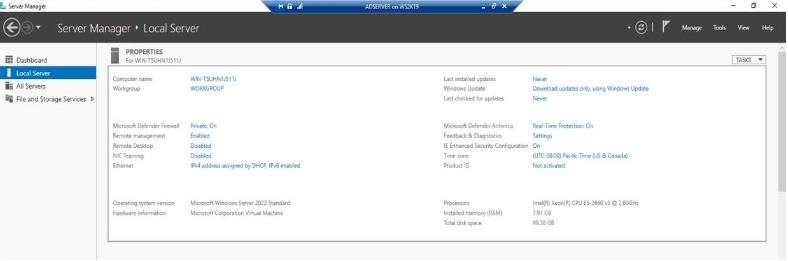
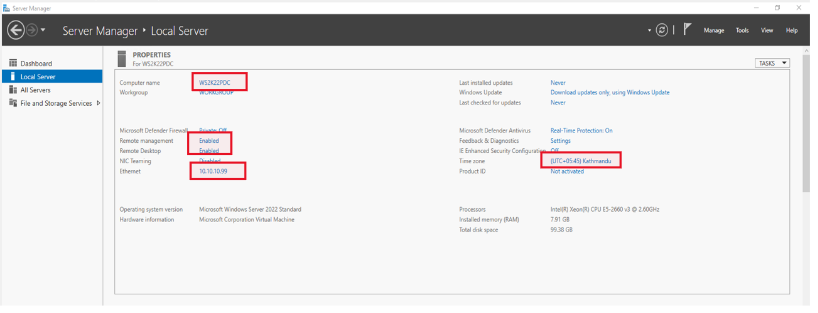
Now, we need to setup the pre-installation task like changing Computer name, IP Address, Time Zone, and other properties. After changing the computer name, the server needs to be restarted.
My Server Setup is:
- Machine Name: WS2K22PDC
- IP Address: 10.10.10.99
- DNS: 10.10.10.99
Note: Since the server will act as DNS server, for DNS server field you can use local host address (127.0.0.1) or the servers’ IP address itself (10.10.10.99)
Active Directory setup process is divided into two major parts:
- Install Active Directory Domain Service
- Promote server as Domain Controller
- DNS Configuration (Since we are using our Domain Controller server as a DNS server also, there is not much benefit on using standalone internal DNS Server)
Let’s walk through the methods of installing active directory on windows server 2022 and adding domain in new forest.
Step-1: Install Active Directory Domain Services (ADDS) Role
- Need to login to your server with administrator account.
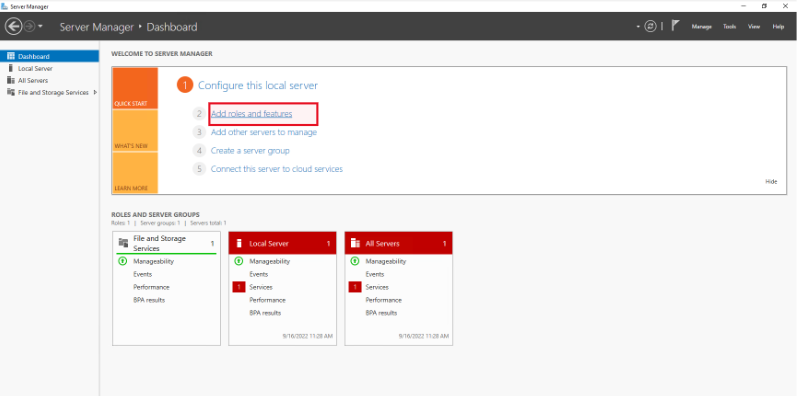
- Search and Open Server Manager and then Dashboard.
- Click on Add roles and features or you can also go through the Tools on Server Manager and then Add roles and features.
- Click on Next to continue.
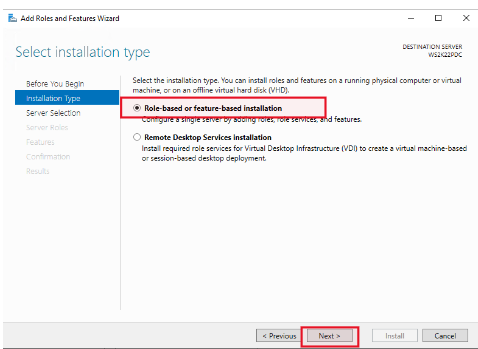
- Select Role-based or feature-based installation and click on Next.
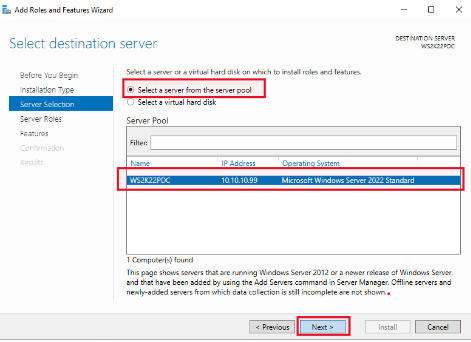
- Since I am installing AD DS server role locally, I will select “Select a server from the server pool”. Select the server on which you want to install AD DS server role, in my case its WS2K22PDC. Click on Next.
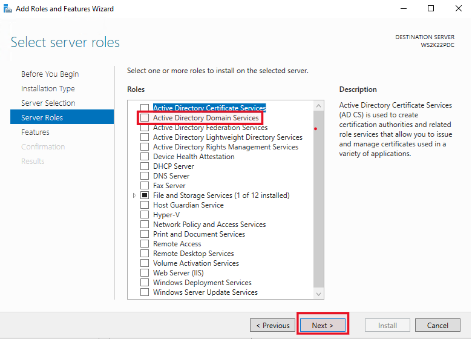
- Now select Active Directory Domain Services role from the Select server roles page.
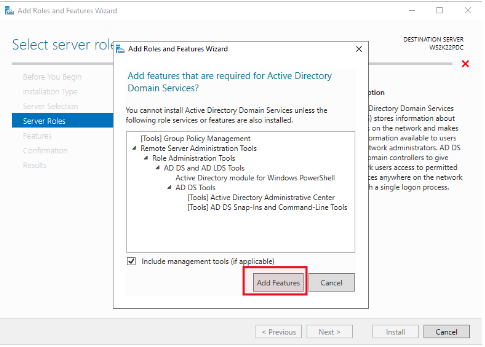
- A pop-up will appear to add features that are required for Active Directory Domain Services. Click on Add Features and then click on Next.
- Now, the Active Directory Domain Services role has been selected. Again, select DNS server role and then click on add features to add required additional features. Click on Next.
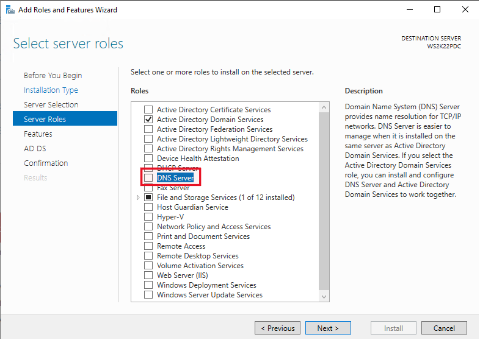
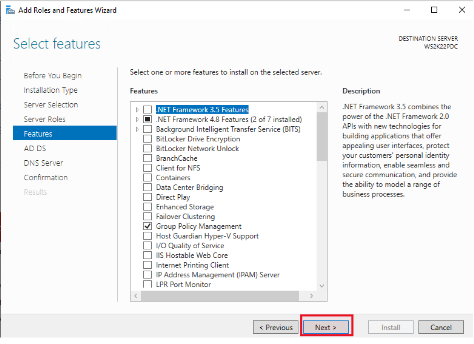
- Now, click on Next to continue.
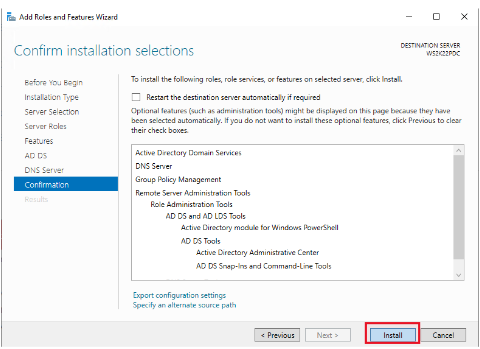
On the Confirmation page, click on Install to start the installation of Active Directory Domain Services and DNS Server role.
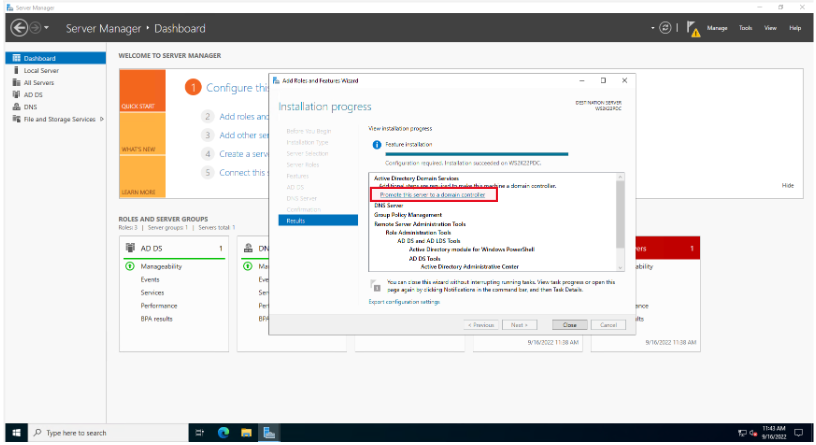
- The installation process will start and it will take few minutes to complete the installation. Once the installation is completed, click on Close.
Step-2: Promote Server as Domain Controller
- After the installation of Active Directory Domain Services role, you will see a notification flag on Server Manager. Click on the notification flag and then click on Promote this server to a domain controller.
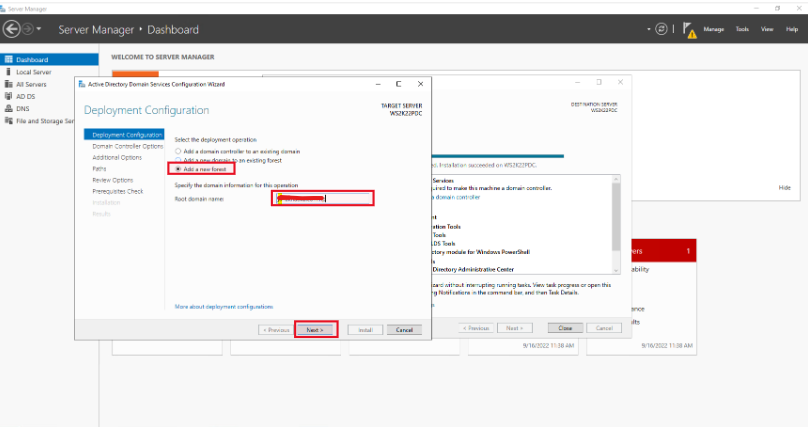
- On the Deployment Configuration page, select Add a new forest and then enter the Root domain name. In my case, I am using “MrMark.local” as my root domain name. Click on Next to continue.
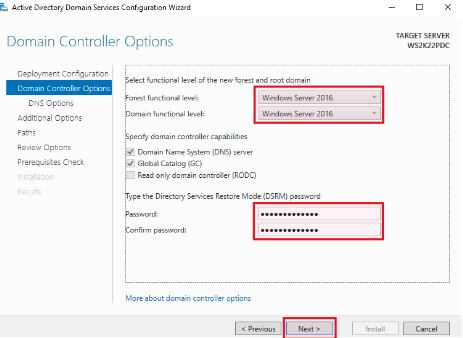
- On the Domain Controller Options page, select the Forest functional level and Domain functional level. Since I am using windows server 2022, I will select windows server 2022 for both forest and domain functional level. Also, select the Domain Name System (DNS) server and then enter the Directory Services Restore Mode (DSRM) password. Click on Next to continue.
- On the DNS Options page, it will give warning about DNS delegation, but it can be ignored. click on Next to continue.
- On the Additional Options page, it will automatically populate the NetBIOS domain name. You can change it if you want. Click on Next to continue.
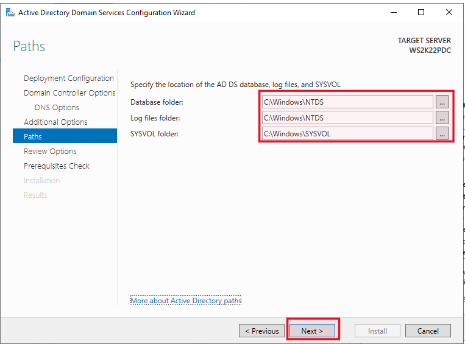
- On the Paths page, you can specify the location for the database, log files, and SYSVOL folder. By default, it will be installed on C drive, but it is recommended to change the location to another drive if you have multiple drives. Click on Next to continue.
- On the Review Options page, review all the options that you have selected and then click on Next to continue.
- On the Prerequisites Check page, it will check for all the prerequisites for installing Active Directory Domain Services. If all the prerequisites are passed, then click on Install to start the installation process.
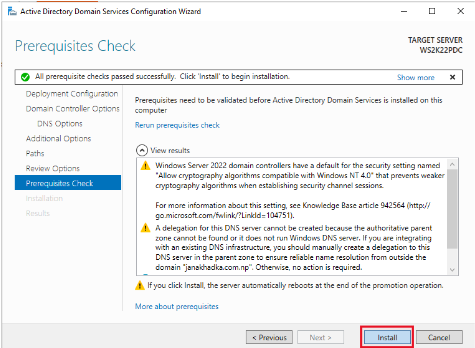
- The installation process will start and it will take few minutes to complete the installation. Once the installation is completed, the server will automatically restart.
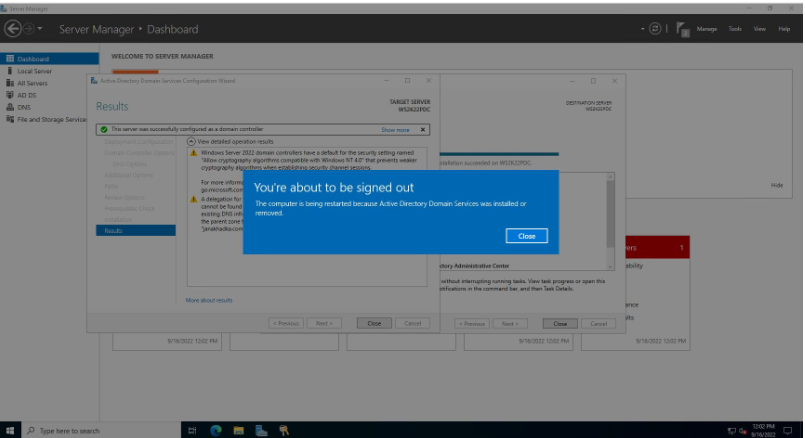 After the restart, you can login to the server with the domain administrator account that you have created during the installation process.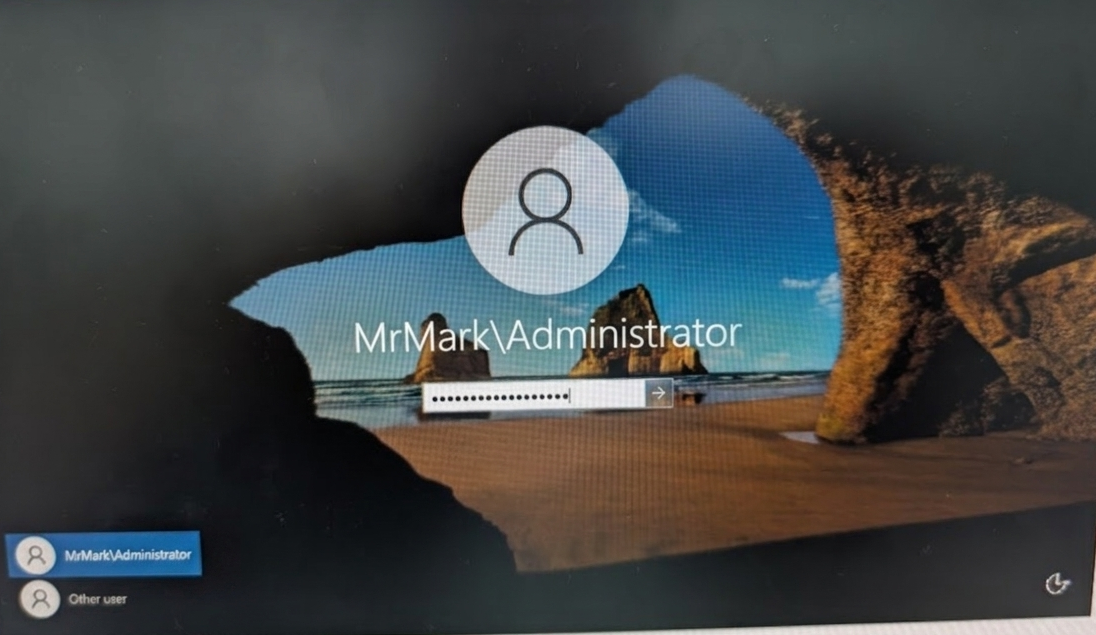
Step-3: DNS Configuration
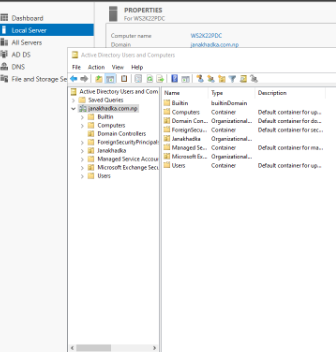
- After the installation of Active Directory Domain Services and DNS Server role, We can now see the domain name and the role AD DS and DNS installed in Server Manager page.
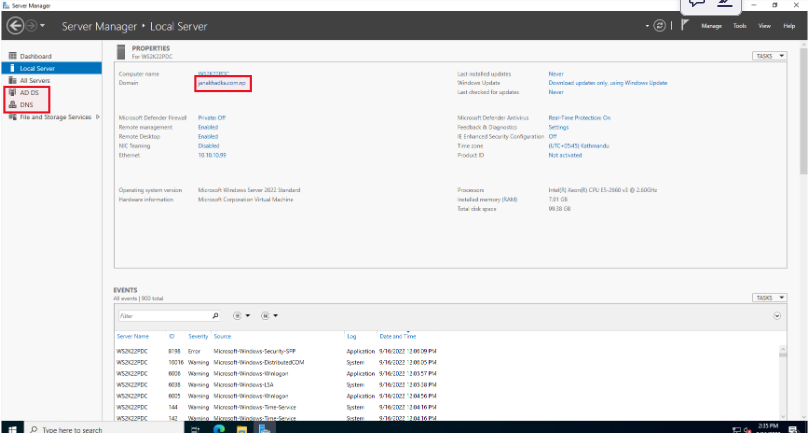
- Now, We can now verify the Domain Controller configuration through Tools on Server Manager page. Open Active Directory Users and Computers from the Tools options.
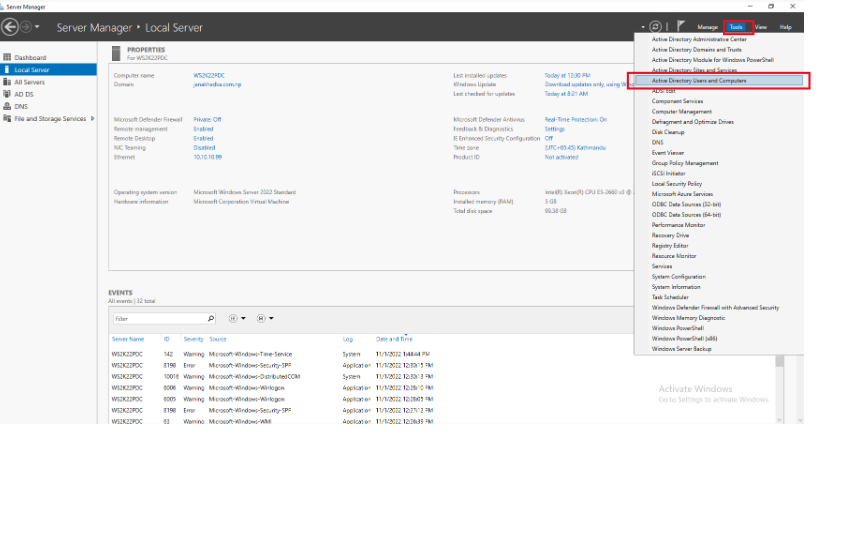
- In the Active Directory Users and Computers page, you can see the domain name that we have created during the installation process. You can also see the default containers and organizational units (OUs) that are created by default.